

Introduction
Modern work, study, and recreation depend on screens and keyboards, making these devices central to our daily productivity and wellbeing. Routine cleaning of keyboards and screens curbs the buildup of dirt and germs, directly impacting focus, device longevity, and professional appearance.
Despite their importance, these surfaces are frequently neglected, leading to distracted work, device malfunctions, and compromised health. This comprehensive guide reveals how properly maintaining these tools helms optimal focus, performance, and hygiene.
Why Routine Cleaning Matters for Focus and Wellbeing
- Hygiene: Keyboards harbor more bacteria than toilet seats. Consistent cleaning cuts germ transmission and illness risk.
- Device Performance: Dust, crumbs, and grime can impede key action and degrade screens, causing mistyped words and eye strain.
- Mental Focus: Visual clutter from smudges or grime can distract, undermining strong concentration and productive workflow.
- Longevity: Regular care extends device lifespan by preventing corrosion, sticky keys, and screen scratches.
- Aesthetics: Clean devices foster professionalism, pride, and a pleasant work environment.
Common Contaminants on Keyboards and Screens
Daily use exposes keyboards and screens to a mix of visible and invisible pollutants:
- Crumbs and Food Particles: Eating at the desk enables debris to collect beneath and between keys.
- Dust: Airborne dust settles on screens and inside keyboards, especially in homes and offices.
- Oils and Skin Particles: Natural body oils from fingers rapidly build up, leaving smudges and sticky keys.
- Germs and Bacteria: Regular typing spreads bacteria, viruses, and microbes—especially when sick.
- Residues: Coffee stains, ink, sweat, and accidental spills can create persistent dirt or sticky patches.
Preparing to Clean: Safety First
Before cleaning, always safeguard electronics from moisture and accidental damage:
- Power Down: Turn off and unplug external keyboards, computers, and laptops. Disconnect removable batteries from wireless devices.
- Avoid Excess Liquid: Use only slightly dampened cloths and never allow liquids to seep through keyboard cracks or screen seams.
- Certain Chemicals: Skip ammonia-based glass cleaners, bleach, or paper towels for screens. These may erode coatings or scratch surfaces.
- Work in a Clean Area: Place devices on a dry, flat surface, ideally with a towel underneath.
- Gather Tools:
- Microfiber cloths (for screens and keyboard surfaces)
- Compressed air canisters (for debris between keys)
- Isopropyl alcohol (at least 70%, for disinfecting and deep cleaning)
- Cotton swabs or soft-bristled brushes
- Cleaning gel or slime (optional for hard-to-reach spots)
Everyday Keyboard Cleaning Techniques
Quick daily and weekly cleaning minimizes grime and distraction:
- Shake Out Debris: Hold the keyboard upside down and gently shake to loosen and free crumbs and dust.
- Compressed Air: Use short bursts of air between keys, moving in a zigzag pattern. Avoid tilting the can or turning it upside down to prevent liquid discharge. Substitute tools: cold hair dryer, balloon pump.
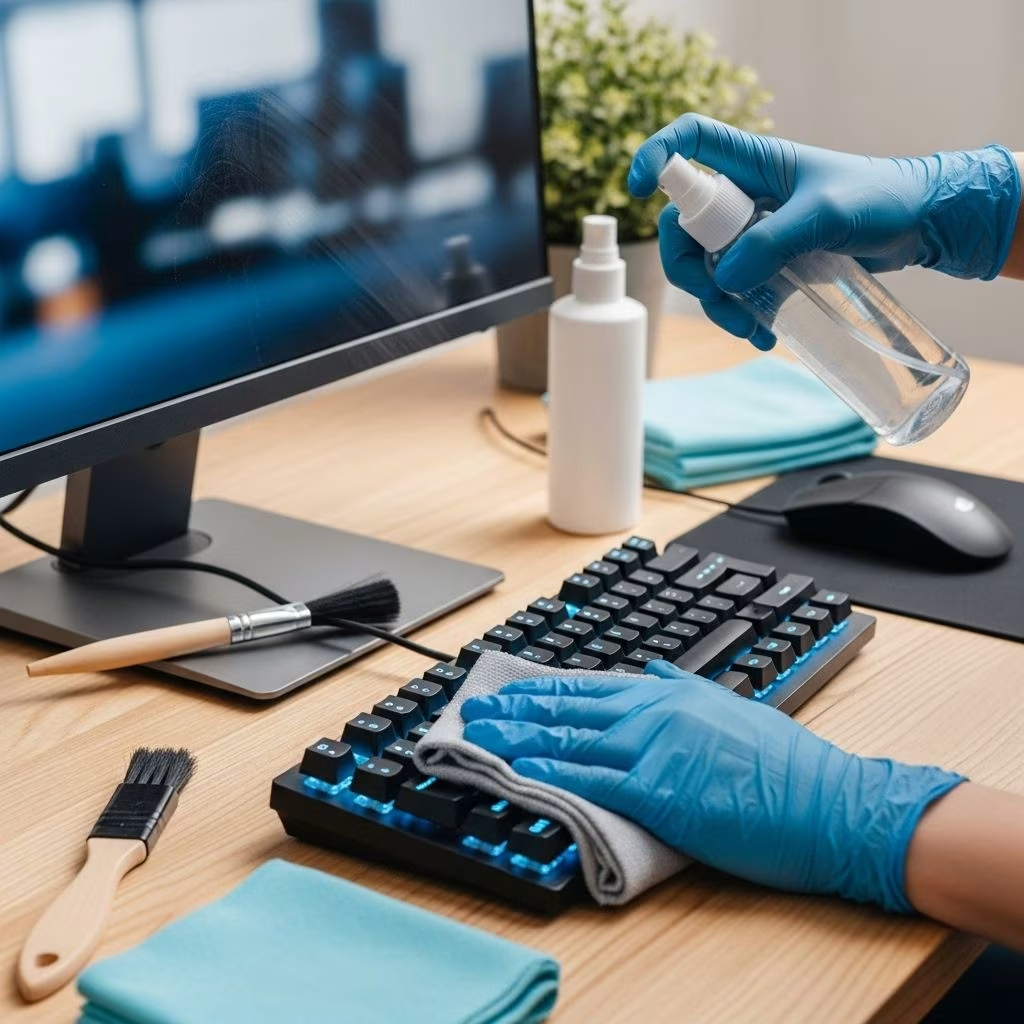
- Microfiber Wipe-Down: Gently rub the surface, keys, and edges with a dry or slightly dampened microfiber cloth. For stubborn spots, use a bit of isopropyl alcohol on the cloth.
- Cleaning Gel: Gently press gel between keys; lift away to remove hidden dirt. Discard gel when dirty.
- Brushes and Cotton Swabs: For sides and hard-to-reach areas, use a soft brush or swab dipped in alcohol.
Tip: Never spray cleaning solutions directly onto keyboards. Apply to cloth or swab first.
Deep Cleaning Keyboards: Step-by-Step
Desktop Keyboards
- Unplug the keyboard.
- Carefully remove keycaps using a keycap puller (for mechanical keyboards).
- Clean exposed surface with a swab dampened in pure isopropyl alcohol; avoid additives.
- Soak keycaps in warm, soapy water for about 30 minutes.
- Rinse and dry keycaps thoroughly before reattaching.
Laptop Keyboards
- Turn off and unplug the device.
- Use compressed air to clear debris.
- Gently clean between keys with cotton swab moistened with isopropyl alcohol.
- Wipe keys using a microfiber cloth dampened with distilled water.
- Dry thoroughly with a soft, lint-free cloth.
Mechanical Keyboards
- Unplug and remove all keycaps.
- Blast air across switch plate to clear dust.
- Clean between switches with alcohol-dipped swab.
- Soak, rinse, and dry keycaps as above before reassembling.
How to Clean Computer and Laptop Screens
Screens require gentle handling to avoid damage. Follow these proven steps:
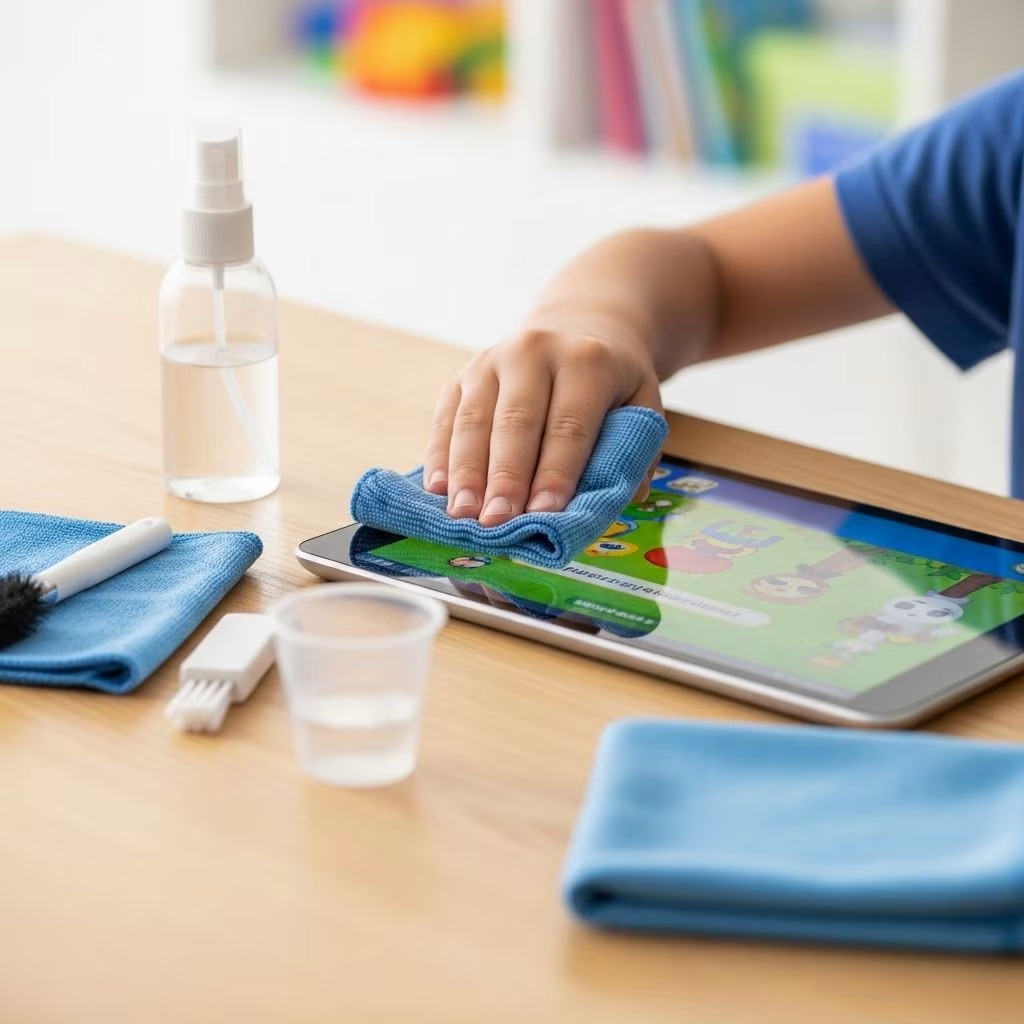
- Dry Microfiber Cloth: Wipe away fingerprints and dust using light, circular motions.
- Damp Cleaning: For tougher stains, moisten cloth lightly with distilled water or a 50/50 mix of distilled water and vinegar. Vinegar’s gentle acidity helps break down oils without harming coatings.
- Isopropyl Alcohol: Use sparingly and never directly on the screen. Dampen the cloth first. Some manufacturers advise against using it on LCDs due to potential anti-glare coating damage.
- Screen Cleaning Kits: Commercial kits often include microfiber cloths and cleaning solutions formulated for delicate electronics.
- Avoid: Paper towels, facial tissue, or rough cloths—these may scratch or haze the display.
Comparison Table: Cleaning Solutions for Screens
| Solution | Safe for Screens? | Recommended Applications |
|---|---|---|
| Distilled Water | Yes | General dust and smudge removal |
| Vinegar (50/50 with water) | Yes | Breaking down oils, fingerprints |
| Isopropyl Alcohol (70+%) | Sometimes | Stubborn stains (if manufacturer-approved) |
| Ammonia-based Cleaners | No | Should be avoided |
| Paper Towels | No | Can scratch screens |
Frequently Asked Questions
Q: How often should I clean my keyboard and screen?
A: Clean high-touch surfaces like keyboards daily or weekly; deep clean monthly or as needed. Screens benefit from weekly gentle cleaning and monthly deep cleans. Health emergencies (colds, flus) warrant more frequent cleaning.
Q: Is compressed air safe for all keyboards?
A: Generally, yes, but avoid tilting the can or using it upside down. For delicate laptop keyboards, lower air pressure; substitute with cold air from a hair dryer or balloon pump if needed.
Q: Can I use regular glass cleaner for my screen?
A: No. Most glass cleaners contain ammonia, which damages screen coatings. Use microfiber cloths and distilled water or vinegar solutions instead.
Q: What if I spill liquid on my keyboard?
A: Immediately turn the device upside down, unplug, and disconnect power. Pat gently with a dry, lint-free cloth. Do not use until fully dry—consider professional cleaning if liquid seeped below keycaps. Act quickly to reduce risk of permanent damage.
Q: Is cleaning gel safe for all keyboards?
A: Yes, in general. Only press the gel gently, and do not use on wet surfaces. Discard when noticeably dirty.
Routine Maintenance Tips for Maximum Focus
- Don’t Eat at Your Desk: Food particles dramatically increase grime and disease risk on keyboards.
- Wash Hands Before Use: Clean hands reduce transfer of oils and germs.
- Cover Keyboards: Use dust covers when devices aren’t in use, especially in dusty environments.
- Regularly Replace Cleaning Tools: Old cloths and brushes can transfer dirt instead of cleaning. Restock when worn.
- Set Reminders: Weekly calendar alerts help build consistent cleaning habits.
Maintaining a scheduled routine for device cleaning not only preserves equipment, but actively fosters a smooth, focused environment where distractions—and downtime—are minimized.
Expert Insights: Safety and Best Practices
- For Keyboards:
- Use isopropyl alcohol judiciously and test first on hidden part—some key graphics may fade.
- Anti-bacterial wipes can also clean keyboards and mice; ensure minimal liquid content and quick evaporation.
- For Screens:
- Avoid household window cleaners—these can degrade display clarity over time.
- Do not press hard on screens; gentle, even wipes are safest.
- Apply water or solution to cloth before the device—not directly—to sidestep seepage and internal corrosion.
- For Health:
- Disinfect workstations during cold and flu season or after illness.
- Regular cleaning improves air quality and reduces unexpected allergic reactions or eye strain caused by unseen dust.
Conclusion
Making routine keyboard and screen cleaning part of your weekly workflow is an investment in your health, focus, professional image, and the devices you rely on daily. A few minutes each week keeps distractions—and germs—at bay, extends the lifespan of valuable tech, and helps you create a workspace where clarity and productivity thrive.
References
- https://www.hp.com/us-en/shop/tech-takes/how-to-clean-keyboard
- https://www.ap.org/news-highlights/spotlights/2025/how-to-clean-keyboard-grunge-earwax-in-earphones-and-screen-smudges/
- https://blog.codinghorror.com/cleaning-your-display-and-keyboard/
- https://www.oxo.com/blog/cleaning-and-organizing/computer-cleaning
- https://giveitgetit.org/computer-screen-cleaning-guide/
- https://community.frame.work/t/cleaning-recomendations/43200