

- Introduction
- Understanding Large Family Scheduling Challenges
- Trello for Family Scheduling
- Asana for Family Scheduling
- Trello vs Asana: Direct Comparison
- Best Practices for Large Family Schedule Management
- Tips for Making It Work
- Frequently Asked Questions (FAQs)
- Conclusion
Introduction
Managing schedules in a large family is a complex task that demands organization, communication, and flexibility. With multiple activities, appointments, and responsibilities, keeping everyone on the same page can be overwhelming. In the digital age, productivity tools like Trello and Asana are being adopted not just for work, but for family life, offering new ways to coordinate, track, and optimize daily routines.
This article provides an in-depth look at how Trello and Asana can be used for large family schedule management. It covers setup processes, core features, pros and cons, and expert recommendations for each platform—helping you decide which tool best fits your family’s needs.
Understanding Large Family Scheduling Challenges
Large families face unique scheduling hurdles, such as:
- Multiple Schedules: Tracking events, chores, appointments, and activities for four or more individuals.
- Communication Breakdowns: Miscommunication can lead to missed events or double-bookings.
- Shared Responsibilities: Coordinating chores, homework, and other tasks requires transparency and accountability.
- Adaptability: Schedules change frequently, requiring a tool that can handle rapid updates.
Traditional planners or wall charts may not scale for large families, making digital tools essential.
Trello for Family Scheduling
Trello is a visual project management tool based on the Kanban board system, making it intuitive for visualizing workflows and organizing tasks in columns (lists) and cards. Its simplicity, flexibility, and gamification elements (like stickers and backgrounds) make it appealing for families.
Key Features
- Unlimited Boards: Each family member can have their own board or shared boards for group activities, homework, or chores.
- Cards and Lists: Tasks are organized as cards, which can be moved between lists (e.g., “To Do,” “Doing,” “Done”).
- Checklists: Break down tasks into smaller steps; useful for chores or lesson plans.
- Due Dates and Reminders: Set deadlines and receive notifications.
- Labels: Color-code tasks by category, priority, or family member.
- Attachments: Add photos, files, or links to cards (e.g., school permission slips).
- Power-Ups: Extend functionality with calendar views, voting, integrations, and more.
- Mobile Apps: Access boards from smartphones for on-the-go updates.
How to Set Up Trello for Large Family Schedules
- Create a Family Workspace: Make a new board for the whole family.
- Organize Lists by Activity Type: Example lists: Daily Chores, Appointments, Homework, Meal Plans, Weekend Activities.
- Assign Families: Add all family members as collaborators, so everyone can view and edit the board.
- Customize Cards: For each event or task, create a card with relevant details, due dates, attachments, and labels.
- Use Checklists: For complex tasks (e.g., “Prepare for vacation”), add a checklist with subtasks.
- Enable Power-Ups: Add Calendar Power-Up for a visual timeline, Voting Power-Up for family decisions, and more.
- Set Up Reminders: Configure notifications so no one misses an important event.
Pros and Cons
| Pros | Cons |
|---|---|
| Visual, easy-to-use interface | Subtasks lack depth (only checklists) |
| Highly customizable with Power-Ups | No native subtask assignment or hierarchy |
| Free plan is robust for families | Limited reporting and analytics |
| Fun, gamified elements for kids | May become cluttered with many cards |
Asana for Family Scheduling
Asana is a comprehensive project management tool designed for teams, but it adapts well to family use, offering structured task hierarchies, multiple views, and advanced collaboration features.
Key Features
- List, Board, and Calendar Views: View tasks as lists, boards (like Trello), or calendars for flexibility.
- Project Sections: Organize tasks by categories within projects (e.g., “Weekday Schedule,” “Extracurriculars”).
- Subtasks with Assignees and Due Dates: Break down tasks, assign to different family members, and set individual deadlines.
- My Tasks: Each family member sees a personalized list of their responsibilities.
- Comments and Attachments: Discuss tasks, add files, and keep communication centralized.
- Notifications: Stay updated on task assignments and changes.
- Templates: Use pre-built templates for routines, meal planning, or vacation planning.
- Portfolios and Goals: Track long-term family goals (premium feature).
- Mobile Apps: Manage schedules from anywhere.
How to Set Up Asana for Large Family Schedules
- Create a Family Workspace: Start a new project for each major activity (e.g., “Family Calendar,” “Chores,” “Homework”).
- Invite Family Members: Add everyone as team members to collaborate on projects.
- Organize with Sections: Break projects into sections like “Morning Routine,” “Afternoon Activities,” “Evening Wind-Down.”
- Add and Assign Tasks: Create tasks, break them into subtasks, assign owners, and set deadlines.
- Use Multiple Views: Switch between list, board, and calendar views for the best perspective.
- Communicate Within Tasks: Add comments, attachments, and tag family members to discuss details.
- Set Up Notifications: Configure email or app alerts for due dates and updates.
- Explore Templates: Use or customize templates for recurring schedules (e.g., weekly meal plan, school year calendar).
Pros and Cons
| Pros | Cons |
|---|---|
| Structured, hierarchical task management | Learning curve for new users |
| Deep subtask functionality with assignments | Free plan lacks some advanced features |
| Multiple views (list, board, calendar) | May feel overly complex for simple needs |
| Centralized communication and file sharing | Limited automation in free version |
Trello vs Asana: Direct Comparison
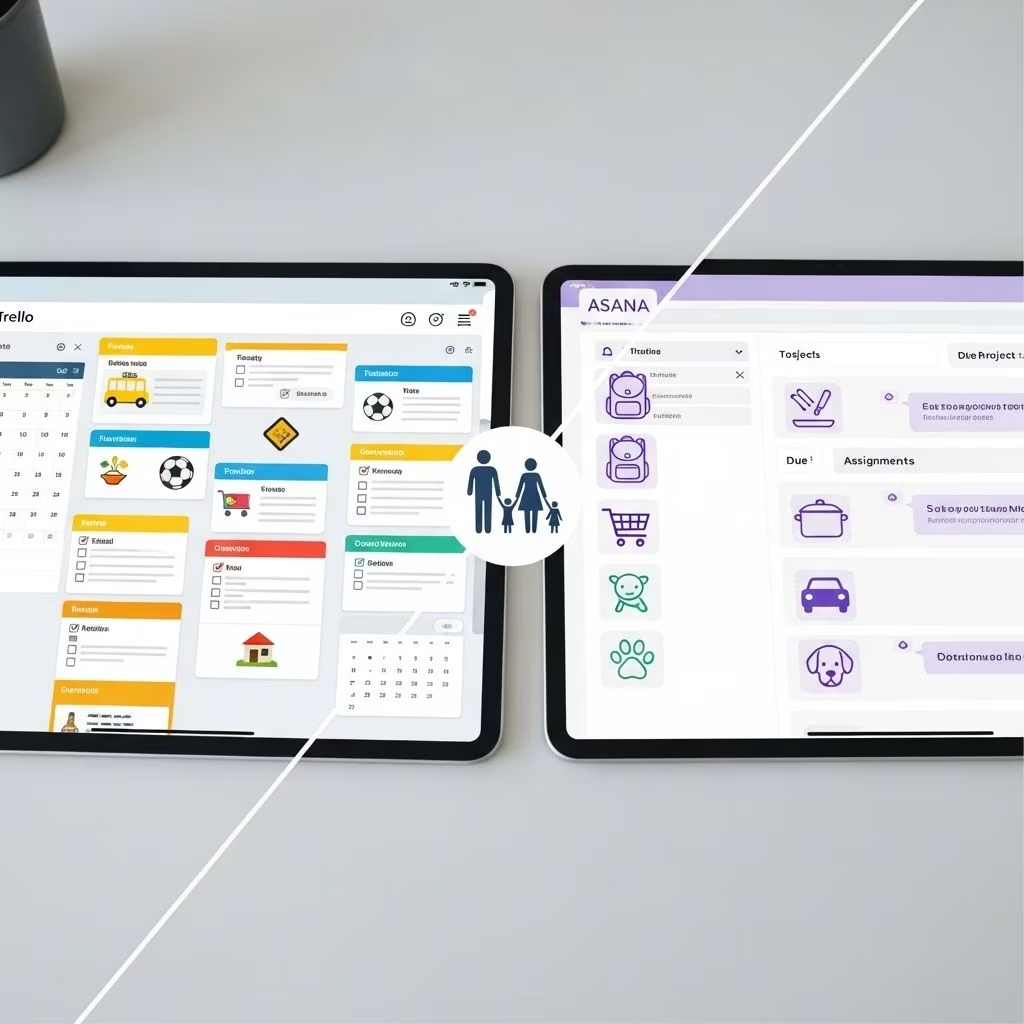
When deciding between Trello and Asana for large family schedule management, consider the features, ease of use, and scalability.
Feature Comparison Table
| Feature | Trello | Asana |
|---|---|---|
| Core Interface | Kanban board (cards & lists) | List, board, calendar, timeline views |
| Subtasks | Only checklists, no hierarchy | Full subtasks with assignments |
| Task Assignment | Assign cards to members (basic) | Assign tasks and subtasks, with due dates |
| Calendar View | Available with Power-Ups | Native, integrated |
| Communication | Comments on cards | Comments, file sharing, tagging |
| Customization | Stickers, backgrounds, Power-Ups | Sections, templates, portfolios |
| Mobile Apps | Yes | Yes |
| Free Plan Limits | Unlimited cards, 10MB/file | Unlimited tasks, 100MB/file |
| Best For | Visual, simple, flexible workflows | Detailed, team-oriented scheduling |
Which Tool is Best for Which Use Case?
- Trello is ideal for visual, easy-to-update schedules—great for families who want a shared, interactive wall chart feel, and for families with younger children who benefit from simple, visual cues. Its gamified elements can motivate kids to complete chores and homework. Trello is also strong for recurring routines, meal planning, and vacation checklists. It’s friendly for individuals and small groups but can get unwieldy for very large families or complex projects.
- Asana excels at structured, hierarchical task management—ideal for families with teens, co-parenting, or managing many extracurriculars and appointments. Its subtask and assignment features make it easy to delegate chores, track homework, and manage overlapping schedules. Asana’s calendar and timeline views help visualize busy weeks, and the “My Tasks” feature gives everyone a personalized to-do list. Asana is better for families who need robust organization and detailed tracking.
Best Practices for Large Family Schedule Management
Regardless of the tool, these best practices will maximize success:
- Centralize Everything: Create a single, shared workspace or project for the whole family to avoid fragmentation.
- Keep It Simple: Start with a few core lists or projects and expand as needed. Don’t overcomplicate the setup.
- Assign Responsibility: Clearly assign tasks and subtasks to individuals. Use labels or colors to show who’s responsible.
- Update Regularly: Hold a weekly family meeting to review and update the schedule together.
- Use Notifications: Enable reminders and notifications for important events and tasks.
- Leverage Templates: Save time by reusing templates for weekly routines, vacation checklists, or meal plans.
- Celebrate Progress: Use stickers, checkmarks, or animations to celebrate completed tasks, especially for kids.
- Iterate and Improve: Regularly ask for feedback from family members and adjust your system accordingly.
Tips for Making It Work
- Get Everyone Onboard: Involve all family members in the setup process and explain how to use the tool.
- Mix Digital and Physical: For younger children, consider printing weekly schedules from Trello or Asana and posting them on the fridge.
- Encourage Accountability: Make updating the schedule a shared responsibility.
- Be Flexible: Don’t be afraid to adjust your system as your family’s needs change.
- Integrate Calendars: Sync your tool with family calendars (Google, Apple, etc.) for seamless updates.
Frequently Asked Questions (FAQs)
Q: Can you assign specific chores or tasks to each child in Trello?
A: Yes, you can assign each card (task) to a specific family member in Trello, though the assignment function is basic. For more granular assignment, consider using labels or checklists with names attached.
Q: Does Asana allow for recurring tasks, like weekly chores?
A: Asana does not natively support recurring tasks in the free plan, but you can duplicate tasks or use templates to recreate weekly routines. Paid plans offer more automation options.
Q: Which app is better for families with very young children?
A: Trello’s visual, simple interface and fun elements (stickers, backgrounds) are often more engaging for families with young children, while Asana’s complexity may be better suited for older kids and teens.
Q: Can these tools sync with external calendars?
A: Trello offers calendar sync via Power-Ups, and Asana’s calendar view integrates with some external calendars. For full integration, you may need paid plans or third-party tools.
Q: Is it possible to track progress on long-term family goals?
A: Asana’s “Portfolios” and “Goals” features (premium) allow you to track progress on larger objectives, while Trello can be adapted for this with custom lists and labels.
Conclusion
Both Trello and Asana offer powerful ways to manage schedules in large families, each with distinct strengths. Trello shines for its visual simplicity, flexibility, and fun elements—ideal for families who value ease of use and visual organization. Asana, on the other hand, is a more comprehensive solution for complex scheduling needs, offering hierarchical tasks, multiple views, and robust assignment features—perfect for families juggling many activities and responsibilities.
Ultimately, the best tool depends on your family’s specific needs, the age of your children, and your comfort with digital organization. Experiment with both platforms, involve your family in the process, and adjust your approach as your routines evolve. With the right setup, Trello or Asana can transform family scheduling from a source of stress into a well-oiled machine, bringing clarity, accountability, and even a little fun to daily life.
References
- https://upbase.io/blog/trello-vs-asana/
- https://zapier.com/blog/trello-vs-asana/
- https://www.visor.us/blog/asana-vs-trello-for-project-management/
- https://kinsta.com/blog/trello-vs-asana/
- https://efficient.app/compare/asana-vs-trello
- https://asana.com/resources/best-project-management-software
- https://monday.com/blog/project-management/trello-or-asana-how-to-choose-the-right-tool-for-your-team/
- https://www.celoxis.com/article/basecamp-vs-trello-vs-asana-vs-celoxis
- https://thedigitalprojectmanager.com/tools/asana-vs-trello/